Tap Connect HubSpot, approve once in HubSpot, and each article lands in your HubSpot blog as a draft.
The short version. Switch to Full article for every detail.
Tap Connect HubSpot and approve our app once, on HubSpot's own screen. Each article then lands in your HubSpot blog as a draft, so nothing goes live until you say so. On the All Eight plan, our team also publishes for you.
The plain version, no background needed. Switch to Full article for every detail.
Connecting your HubSpot site takes about a minute: you approve our app on HubSpot's own screen, and you're done. Every article then arrives in your HubSpot blog as a draft, so nothing goes live until you say so.
The steps, one at a time
- When we ask "What's your website address?", type your address. We tell you it runs on HubSpot. Tap Connect HubSpot.
HubSpot opens its own page, "Connecting RunOctopus to HubSpot". Sign in if it asks, pick your HubSpot account, and tap Choose Account.
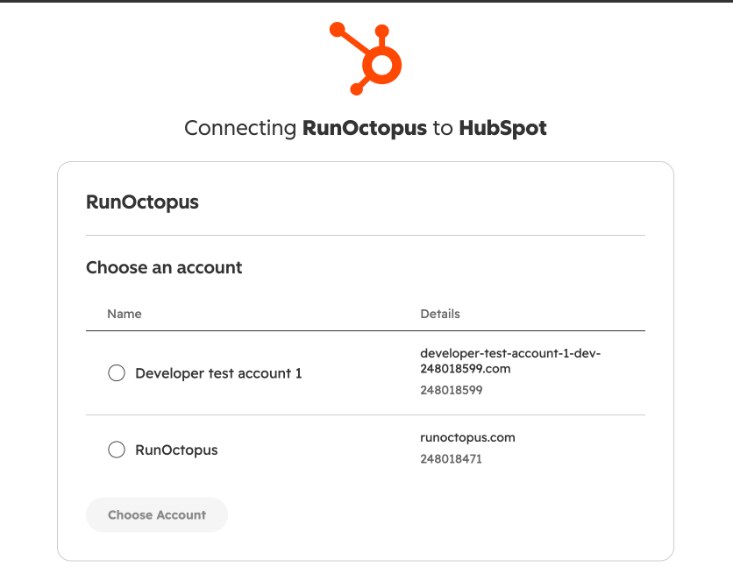
HubSpot's own screen titled Connecting RunOctopus to HubSpot, asking you to choose an account - HubSpot shows what our app can do: work with your website content, like blog posts. Approve it.
- HubSpot sends you back to us, and your site shows as connected. That's it.
Where your articles land
Each article lands in HubSpot under Content, then Blog, marked Draft. Open it, look it over, and publish it when you're happy.
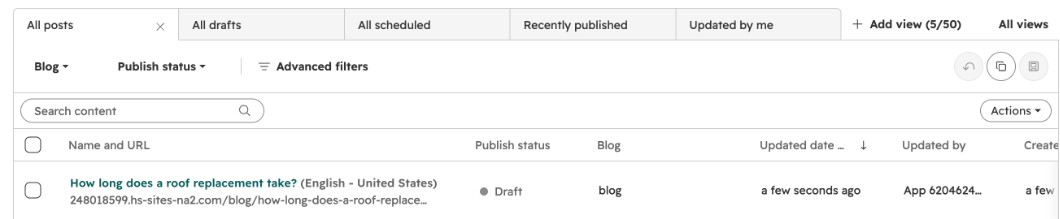
On the All Eight plan, our team also publishes for you.
What to have ready
- Someone with Super Admin rights in HubSpot. HubSpot says connecting an app takes a Super Admin, or someone with the App Marketplace access permission. If that's not you, loop that person in.
- A blog in your HubSpot account. If you don't have one yet, we'll let you know and wait.
What happens next
Head to Install your content to see how your first pieces get onto your site.
Was this page helpful?