How you connect Squarespace depends on your plan: on All Eight, our team connects it and publishes for you; on other plans, Ollie writes each article for you to paste in from your AI Vault.
The short version. Switch to Full article for every detail.
On the All Eight plan, our team connects your Squarespace site and posts for you. On other plans, Ollie writes each article, you paste it in from your AI Vault, and Ollie checks it went live.
The plain version, no background needed. Switch to Full article for every detail.
Squarespace doesn't let any outside app publish posts or pages, even ours. So how you connect depends on your plan.
On the All Eight plan: our team does it for you
You invite our team's address, access@runoctopus.com, as an Administrator. We connect it within one business day and publish for you from then on.
Who can send the invite
Squarespace says only owners and administrators can invite contributors. If that's not you, share this page with whoever owns your Squarespace site.
Why we ask for Administrator
On Squarespace, a lower role (Website editor) can't add new pages or reach your SEO settings (the settings that tell Google what each page is about). Administrator can. It can also see billing; we never touch it.
The steps, one at a time
When we ask "What's your website address?", type your address. We tell you it runs on Squarespace and show the address and role to use. Tap Open my Squarespace invite screen.
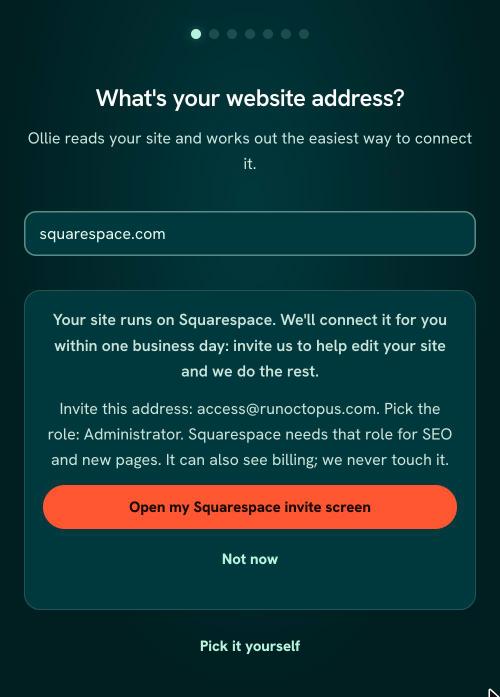
The RunOctopus sign-up screen saying "Your site runs on Squarespace" with the line "Invite this address: access@runoctopus.com. Pick the role: Administrator." and a button Open my Squarespace invite screen - Squarespace opens your site's Permissions & Ownership panel (sign in if it asks). Click Invite Contributor.
- Type a name (like
RunOctopus) and the emailaccess@runoctopus.com. - Switch on Administrator.
- Click Invite. The invite shows under Invites Sent until we accept it.
- Come back to RunOctopus. We connect your site within one business day.
On the Squarespace phone app instead? Tap More, then Settings, then Permissions, scroll down and tap Invite Contributor, fill in the same name and email, turn on Administrator, and tap Send.
On other plans: copy from your AI Vault
Ollie writes each article ready to copy from your AI Vault. You paste it into Squarespace, tap I published it, and Ollie checks it went live right. Want us to publish for you instead? That's included in our All Eight plan.
If something doesn't look right
- No Invite Contributor button? Your login isn't an owner or administrator. Ask the site owner to send the invite.
- Sent it with the wrong permission? Cancel it under Invites Sent and send a new one.
- Anything else, tell us in the app. We're here, and we'll sort it out with you.
You're in: what happens next
Head to Install your content to see how your first pieces get onto your site.
Was this page helpful?