Type your web address, then approve us on your own WordPress screen while signed in as an Administrator (an Editor works too). There's no password to copy or paste.
The short version. Switch to Full article for every detail.
To connect a WordPress site, you type its address in RunOctopus, WordPress opens its own approval page, and you say yes. It works best when you're signed in to WordPress as the site's Administrator.
The plain version, no background needed. Switch to Full article for every detail.
Connecting your WordPress site takes about a minute: you type your web address, WordPress opens its own approval page, and you say yes. There's no password to copy or paste, and we never see your WordPress password.
What you'll need first
- Your site's web address, the one people type to reach you (like
yourbusiness.com). - To be signed in to WordPress in this same browser, as the site's Administrator. An Editor login works too. An Author login can only add new articles, so some things we do (like pages) won't work with it.
Not sure which login you have? In WordPress, open Users, then Profile. Your role is listed there. If you're not an Administrator or Editor, ask whoever runs the site to do this step, or to give you that role.
The steps, one at a time
When we ask "What's your website address?", type your address. We read your site and tell you it runs on WordPress. Tap Connect WordPress.
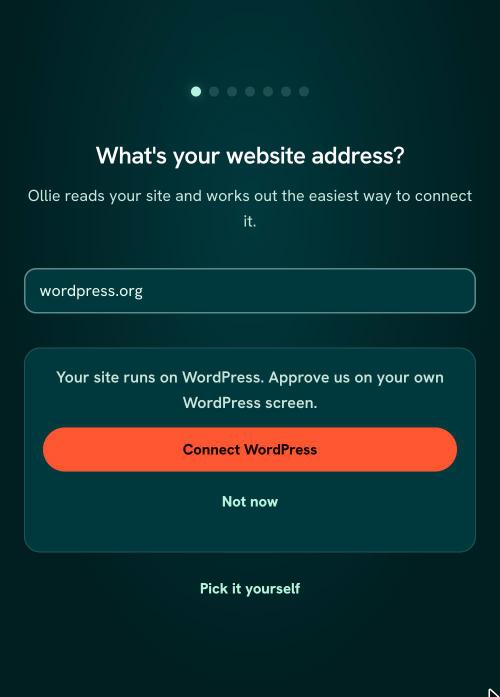
The RunOctopus sign-up screen saying "Your site runs on WordPress. Approve us on your own WordPress screen." with a Connect WordPress button On the Connect your WordPress site page, check your address and tap Connect my site.
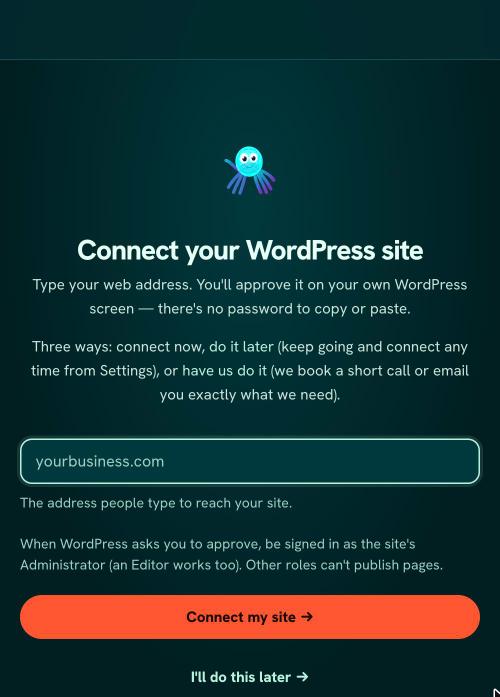
The RunOctopus Connect your WordPress site page, with a box for the web address and a Connect my site button - WordPress opens its own approval page, on your own site. Read it if you like, then approve the connection.
- WordPress sends you back to us, and your site shows as connected. That's it.
If it doesn't connect right away
Don't worry, this happens, and it's almost never anything you did.
- Check your login. Signed in as an Author or Subscriber? Sign in as the Administrator (or an Editor) and try again.
- A security tool may be stopping us. Tools like Wordfence, and some web hosts, switch off the WordPress feature we use to connect (it's called Application Passwords: the safe way WordPress lets an app in without your password). That's normal, and it can be switched back on.
- Still stuck? On the same page, pick have us do it. We'll book a short call or email you exactly what we need, within one business day. You won't be left on your own with this.
You're in: what happens next
Once your WordPress site is connected, head to Install your content to see how your first pieces get onto your site.
Was this page helpful?